We all know benefits of saving digital form data in the form of hard copies. No doubt when data is in digital form, it become easy to be manageable. Also users can access the mailbox anytime and from anywhere. However the data is also highly prone to risk. Sometimes due to hardware malfunction and file corruption users loses their crucial Thunderbird database. Therefore it is important to keep backup of all the important Thunderbird files at some reliable platform. What else is better than Portable Document Format? It is the best and versatile file format used to store and exchange data. Saving files in PDF has many benefits which will be discussed in the next section. In this blog, we will discuss about all the reliable solution of how to save all emails from Thunderbird to PDF. Let’s begin!
PDF – A Versatile File Format
- As the name suggest, PDF files are portable in nature and can be carried without any difficulty.
- PDF is the only format which is machine independent. It can be read or open on any device with the help of freeware Adobe Reader.
- You just need a good internet connection to share these document via mobile, laptop and tablets.
- PDF files keeps the data in original format and does not make any changes in mail properties.
- You can save attachments of any type such as jpg, img, tiff, doc, and many other in PDF.
- PDF files are secured by password. Therefore best medium to save important data.
- Keeping data in PDF has legal importance also. Evidence in PDF are acceptable in front of judiciary.
- At the time of sharing, these files are compressed in sizes to make exchange process hurdle free and smooth.
Save Thunderbird Emails in PDF via Print Command
Step 1: Launch Mozilla Thunderbird in your system. Select the email which you want to move as PDF format.
Step 2: Then hit More tab and choose Print in the drop down menu.
Step 3: Choose “Microsoft Print to PDF” and tick Print to file option.
Step 4: Choose desirable location and give suitable name in name box. Hit Save button to save PDF file.
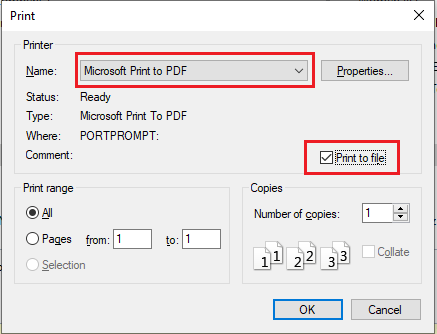
No doubt print command method is a free way of saving Thunderbird emails in PDF. Nevertheless it has some drawbacks such as:
- Print command is only useful for saving single Thunderbird files as PDF. For moving bulk Thunderbird files in PDF, you have to follow last two steps for each Thunderbird mails and hence make the process lengthy.
- Installation of Thunderbird is mandatory.
Professional Method to Save Thunderbird Emails in PDF
Thunderbird to PDF Converter is a smart and reliable third party solution. It provides you 100% accurate and integrate solution of how to save all emails from Thunderbird to PDF. Thunderbird Mail to PDF Converter is a trustworthy platform that perform Thunderbird emails saves as PDF efficiently. To save Thunderbird email as PDF without any error, follow below given steps.
Step 1: Download Thunderbird to PDF Converter and run it in your system.
Step 2: Click File Mode or Folder Mode to load your MBOX files in software.
Step 3: The software start showing preview of all the MBOX files. Select/Deselect files according to your need.
Step 4: Choose PDF from the list of several other file formats and hit Next button.
Step 5: Browse for the destination location, apply advance filters and advance PDF saving option. Hit Convert button to start the backup process.
Start 6: After completion, a message box opens with a message “Conversion Completed Successfully”. Click Ok to end the process.
Thunderbird to PDF – Freeware Edition
Thunderbird Converter demo edition is available for users understanding and analysis purpose. Using the demo version, users can understand how to save all emails from Thunderbird to PDF in few simple steps. The freeware edition allow users to save only first 20 emails/folder from Thunderbird to PDF for free.

 My Tech Ideas